蓝牙功能
说明
蓝牙功能可用于最新版的Ubuntu系统。
Ubuntu 系统
设置蓝牙的可见性
1.将星闪模块插入启智01的USB口。
2.启智01的HIMI接口连接显示器。
3.启动启智01。
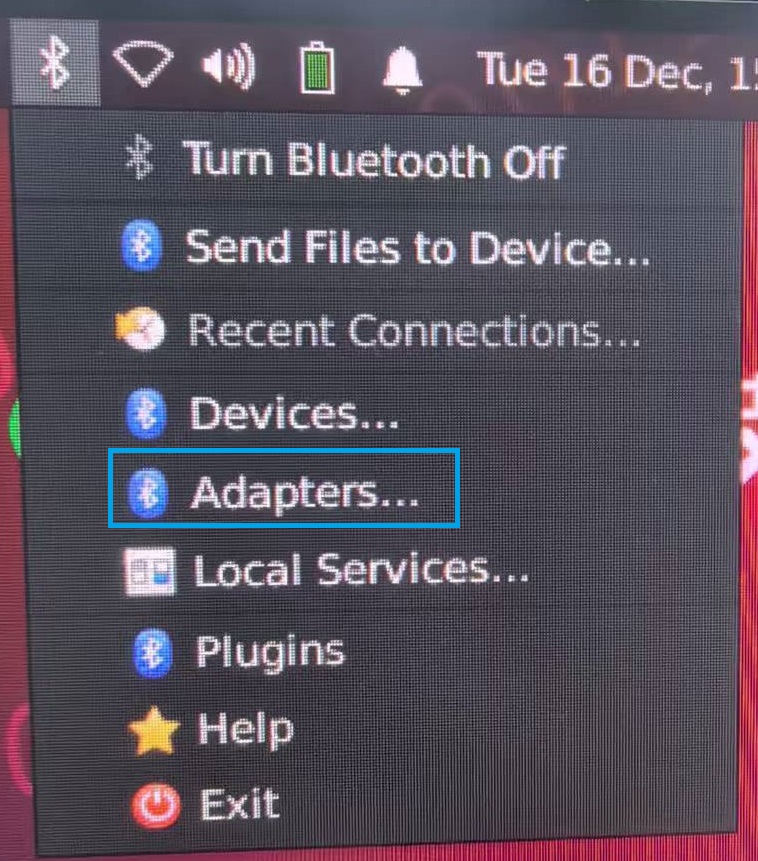
4.启智01启动后,在右上角点击“Bluetooth Enabled”图标,在弹出的菜单中,点击Adapters...项。

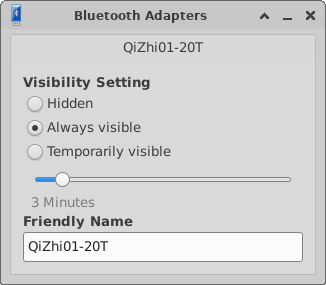
5. 在弹出的窗口中选择Always visible项,然后关闭窗口。
通过终端设置蓝牙可发现和广播开启
- 查看蓝牙的状态
bluetoothctl show
hciconfig hci0
rfkill list bluetooth
如果显示Discoverable: no,说明 蓝牙 没有处于可被发现(discoverable)状态。
- 设置蓝牙状态
运行以下命令,进入控制台后执行
bluetoothctl
执行以下命令,修改蓝牙的状态
power on
agent on
default-agent
discoverable on
pairable on
show
可以看到蓝牙的状态已修改:Discoverable: yes
- 确保蓝牙广播开启
打开另一终端执行以下命令:
sudo btmgmt --index 0 advertising on
输出信息如下:
hci0 Set Advertising complete, settings: powered connectable discoverable bondable le advertising secure-conn
- 设置可见超时时间为永不超时 在终端中执行以下命令:
bluetoothctl discoverable-timeout 0
输出信息如下:
Changing discoverable-timeout 0 succeeded
- 使用其它设备搜索蓝牙
可以搜索到该蓝牙设备并进行连接。
🚨 “Linux 的 BlueZ 占用了蓝牙硬件,可能导致 AT 模式无法访问 BLE 芯片”
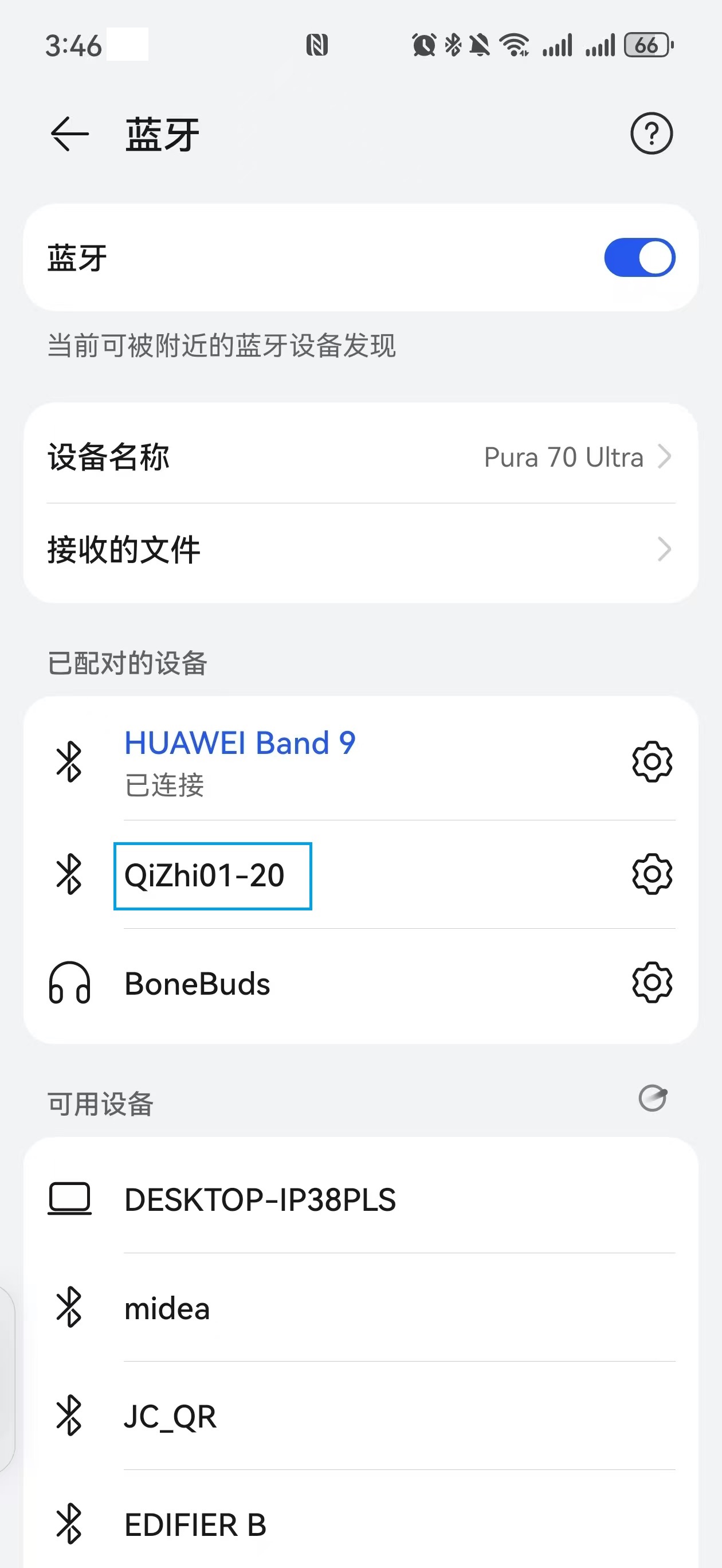
通过手机连接
- 打开手机蓝牙,搜索可用的蓝牙设备。
- 连接已搜索到的蓝牙设备QiZhi01-20。